Introduction Last updated: 25 July 2025

Welcome to ReadyDesk documentation and thank you for choosing ReadyDesk.

ReadyDesk is a complete CRM, HRM, and Project Management system with a powerful admin dashboard designed to help businesses manage clients, employees, and projects efficiently from one centralized platform.


We sincerely thank you for purchasing our product on CodeCanyon. Your trust in our offering is highly valued.

  • Created: 15 March 2026
  • Updated: 18 March 2026

If you have any questions not addressed in this help file, please feel free to reach out to us via the Item Item Support Page.

System Requirements 1.1

The required specifications for the Admin Panel.

  • PHP Version: 8.2.x
    PHP Version 8.2.x must be installed on your system to proceed further.

  • MySQL Version: 8.x
    MySQL Version 8.x must be installed on your system to proceed further.
  • Laravel Version: 10.x
    Laravel Version 10.x must be installed on your system to proceed further.
  • Composer Version: 2.7.x
    Composer Version 2.7.x must be installed on your system to proceed further.
  • The required specifications for the Flutter App.

  • JDK Version: 21.0.6
    Java Version 21 must be installed on your system to proceed further.
  • Flutter SDK: 3.38.5
    Flutter SDK 3.38.5 must be installed on your system to proceed further.
  • Dart Version: 3.10.4
    Dart Version 3.10.4 must be installed on your system to proceed further.
  • Android SDK: 36.1.0-rc1
    Android Version 36.1.0-rc1 must be installed on your system to proceed further.
  • Suggested Server 1.2

    DigitalOcean

    DigitalOcean

    Lorem ipsum dolor sit amet, consectetur adipisicing elit.

    Read More
    Hostinger

    Hostinger

    Lorem ipsum dolor sit amet, consectetur adipisicing elit.

    Read More
    Namecheap

    Namecheap

    Lorem ipsum dolor sit amet, consectetur adipisicing elit.

    Read More
    GoDaddy

    GoDaddy

    Lorem ipsum dolor sit amet, consectetur adipisicing elit.

    Read More
    Google Cloud

    Google Cloud

    Lorem ipsum dolor sit amet, consectetur adipisicing elit.

    Read More
    InMotio-Hosting

    InMotion Hosting

    Lorem ipsum dolor sit amet, consectetur adipisicing elit.

    Read More

    Backend Admin Panel

    Laravel Admin Panel 3.1

    Running Laravel Admin Panel for ReadyDesk

    This documentation provides a step-by-step guide to running a Laravel-based admin panel for a ReadyDesk. Follow these instructions to set up your development environment and run the admin panel locally.

    1. Prerequisites

    • PHP installed (version 8.1 or higher).
    • Composer package manager installed.
    • Laravel installed globally (optional but recommended).
    • A MySQL or PostgreSQL database server running.
    • Node.js and npm installed (for managing frontend dependencies and assets).

    How to Install ReadyDesk on cPanel Hosting

    A step-by-step guide on setting up your ReadyDesk project in cPanel hosting.

    Follow This Instructions

    1. Zip your project folder.
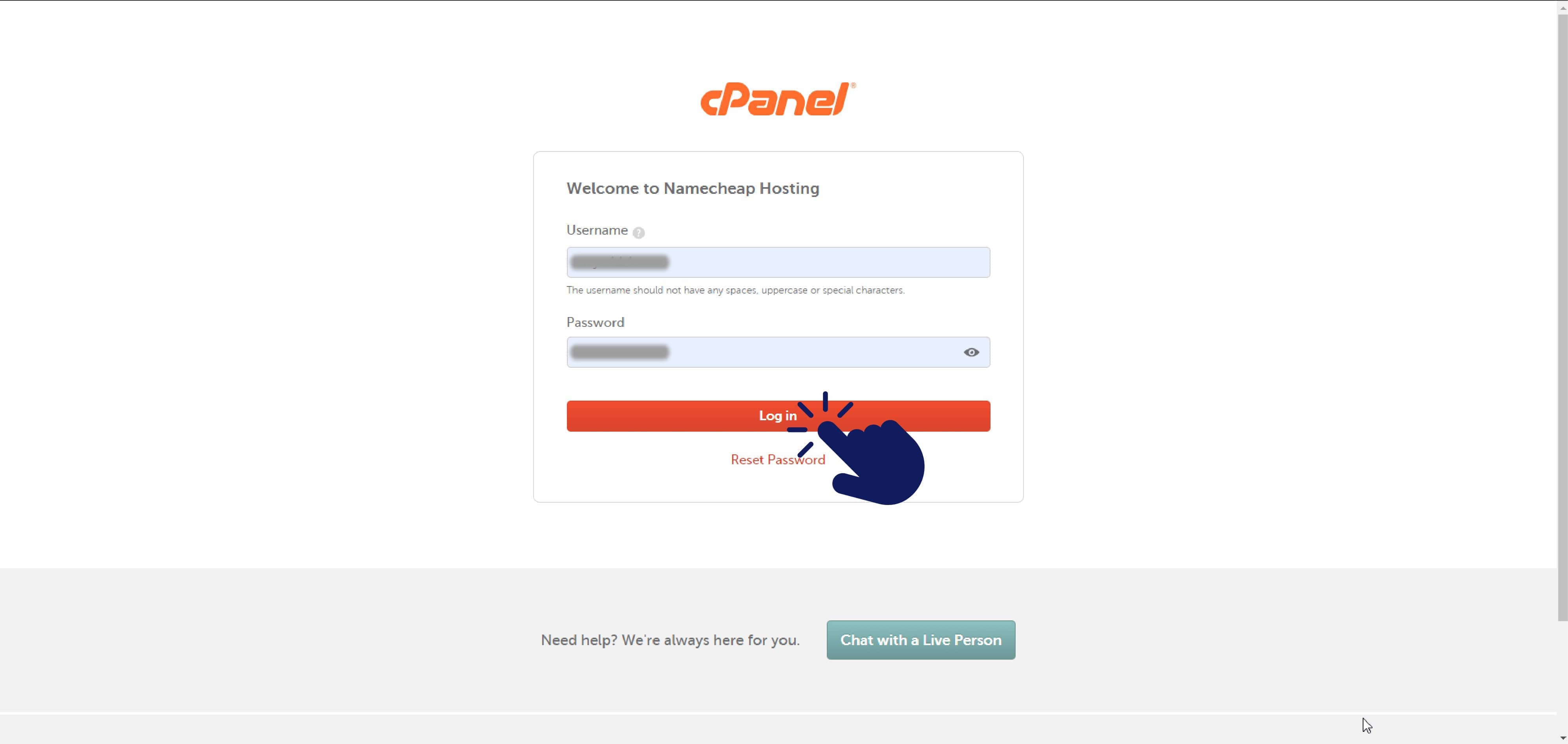
    2. Login to your cPanel.
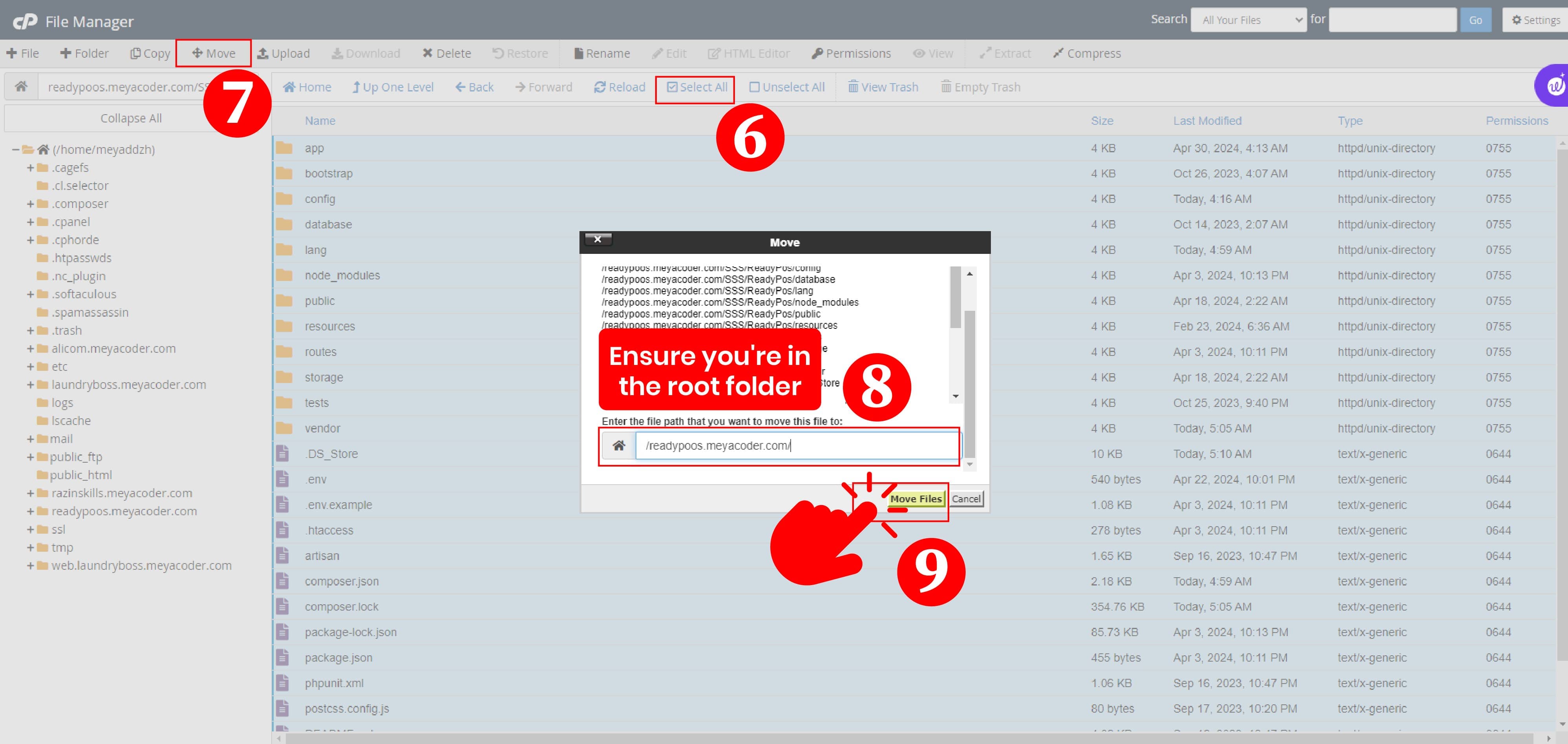
    3. Go to the File Manager option and select it.
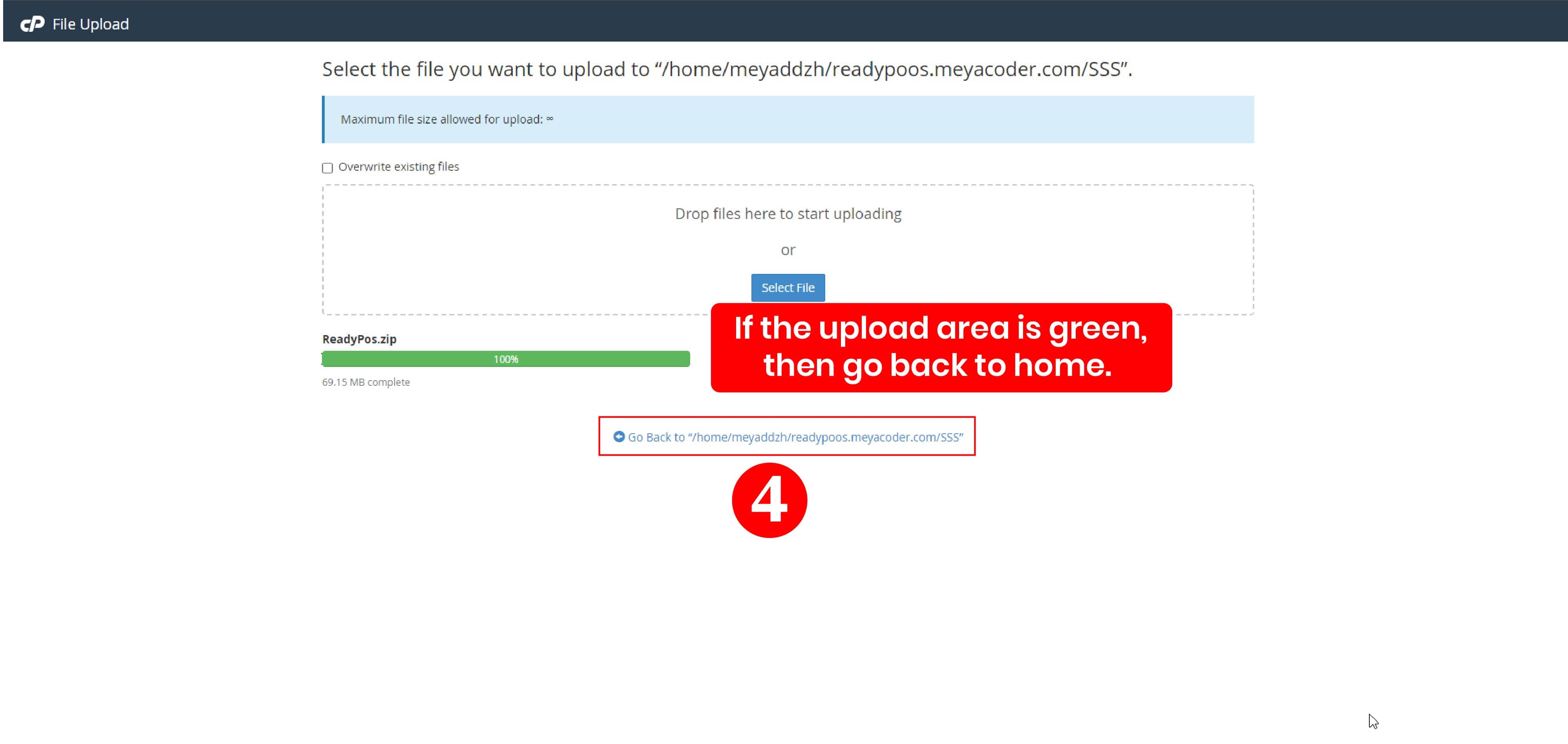
    4. Ensure you're in the root folder, then click "Upload".
    5. Select your zip folder and wait for the upload to complete. If the upload area is green, then go back to home.
    6. Unzip the uploaded folder.
    7. Selectall files and directory move to the root folder.
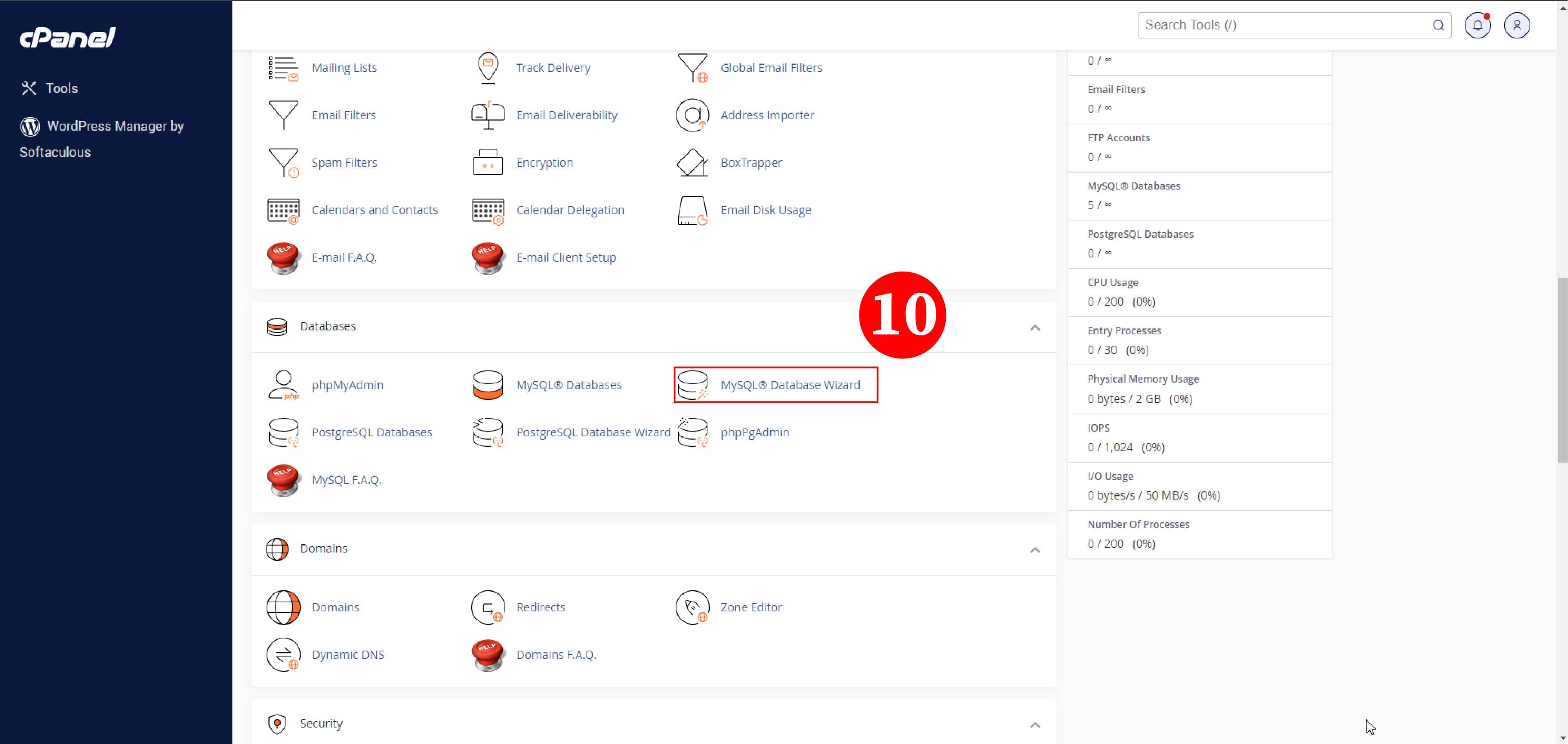
    8. Go back to Cpanel and navigate to Database.
    9. Created a database and add (create if non exist) a DB user.
    10. Example

      Example-01 Example-01 Example-01
    11. You can then run your domain in any browser after that
    12. Press the Start Installation Process button that appears on the screen
    13. Then go to the root folder to check permission and give permission to the mentioned folders
    14. After that, if the permissions of the files are all right, then press the Next button
    15. After that, if the server request extensions are enabled, then click on the next button. If any extension is shown as disabled, then go to select PHP version from the C panel and enable all the extensions that are shown as disabled, then refresh the browser and then click on the next button.
    16. Then fill up the written forms and press the next button
    17. Example

      Example-01
    18. Connect to the database you created and press the next button
    19. Example

      Example-01
    20. Then fill out the form using your Email Account, Domain, Codecanyon Username, and your Purchase Code, and click the Verify Purchases button.
    21. Example

      Example-01
    22. Click on the Final Submission button and complete the installation process by clicking on the Click to Redirect button.

    Full Installation Journey Example

    Example-01 Example-01 Example-01 Example-01 Example-01 Example-01 Example-01 Example-01 Example-01 Example-01 Example-01 Example-01 Example-01 Example-01 Example-01 Example-01 Example-01 Example-01 Example-01 Example-01 Example-01 Example-01

    Tenant Installation & Configuration 3.2

    This section shows how to install and set up a tenant in the ReadyDesk project. Follow the steps to create a new tenant and configure it properly.

    Getting Started Tenant Installation

    This section helps you start using the ReadyDesk project. It shows the basic steps and information you need before tenant installation and setup.

    • Step 1: Login to Main Admin Panel
      Login to the Main Admin Panel using your admin credentials.

      Example: Example-01

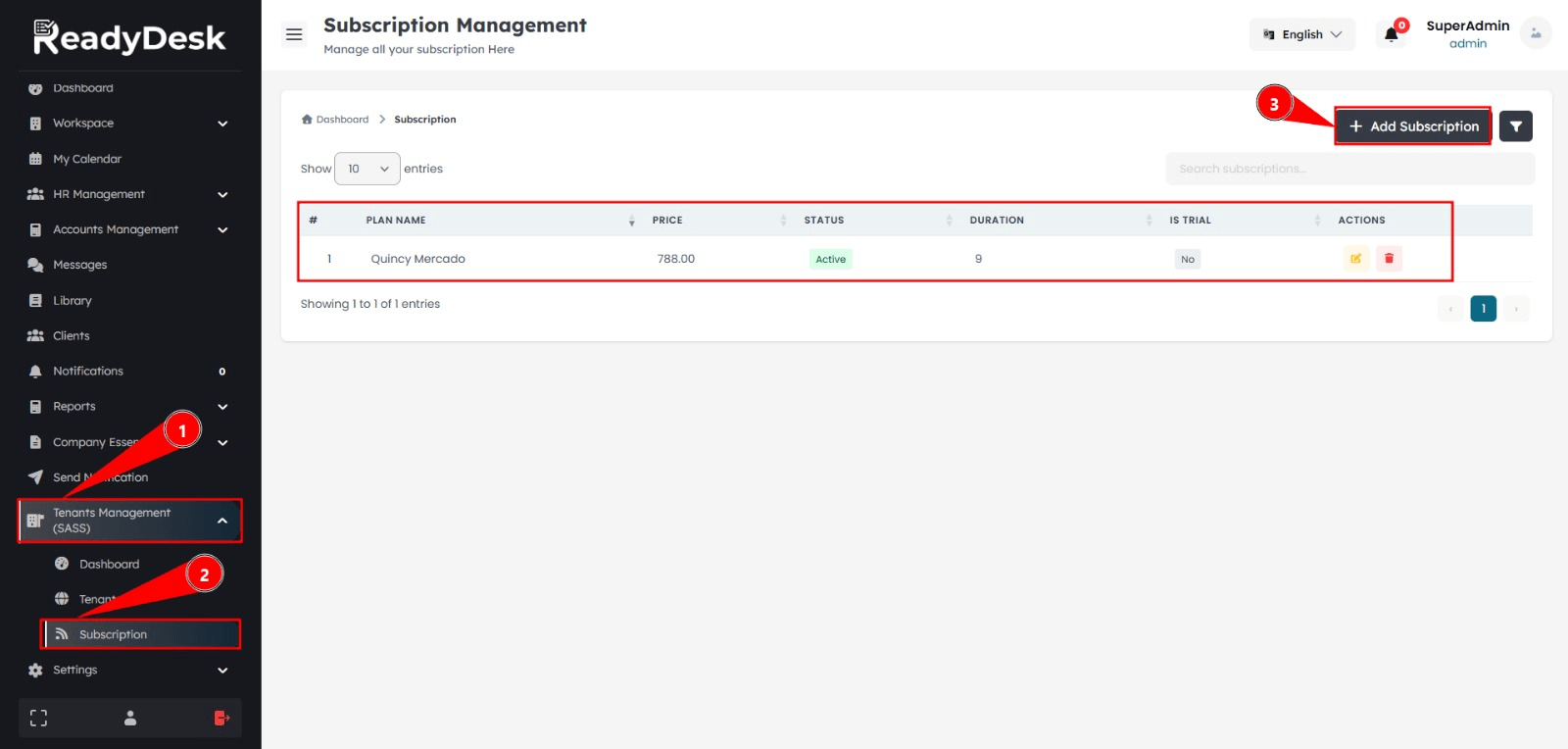
    • Step 2: Create Tenant Subscription
      Navigate to Tenants Management (SAAS) from the admin dashboard and create a subscription for the tenant.

      Example: Example-02

    • Step 3: Go to Main Website
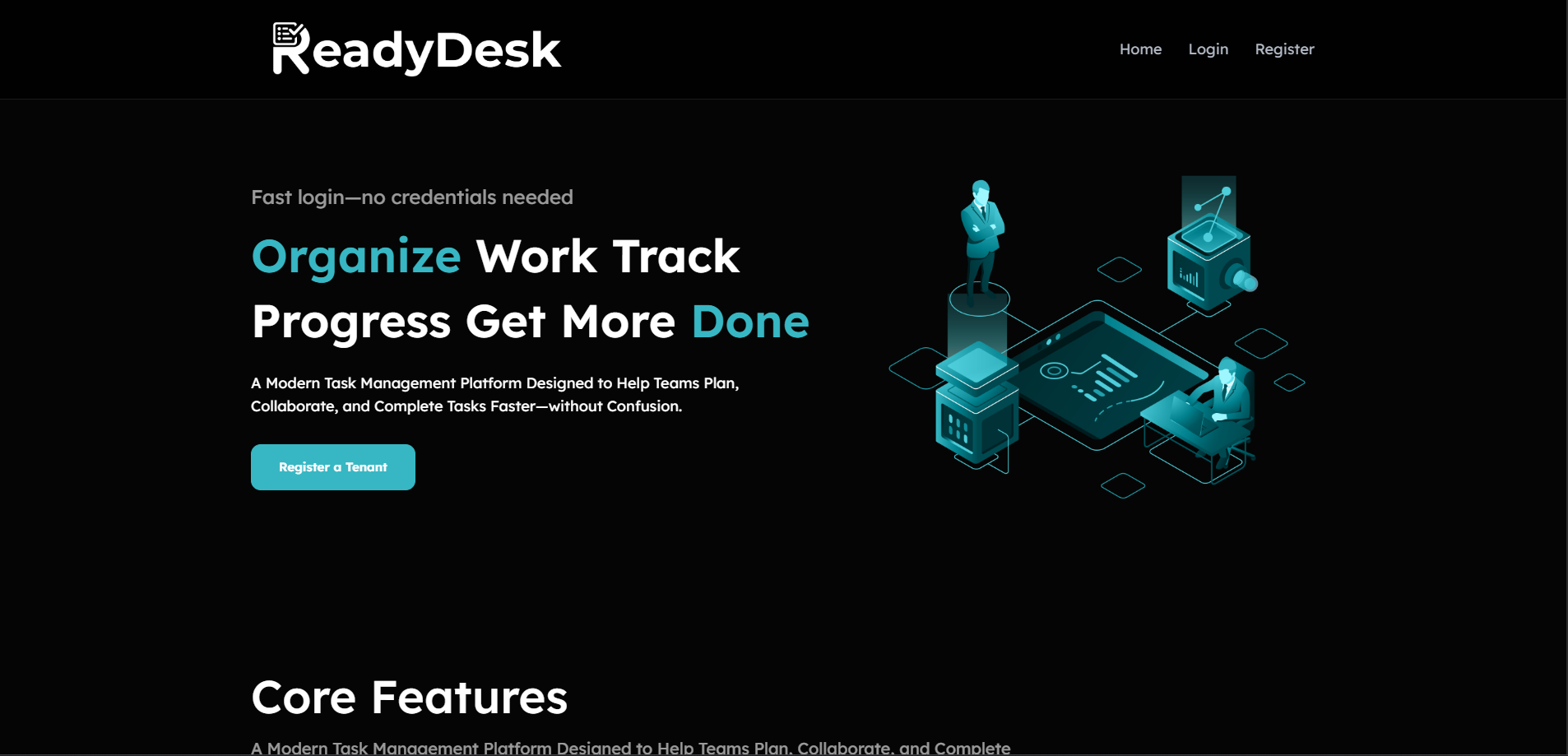
      Open the main website and click the Register button to start tenant registration.

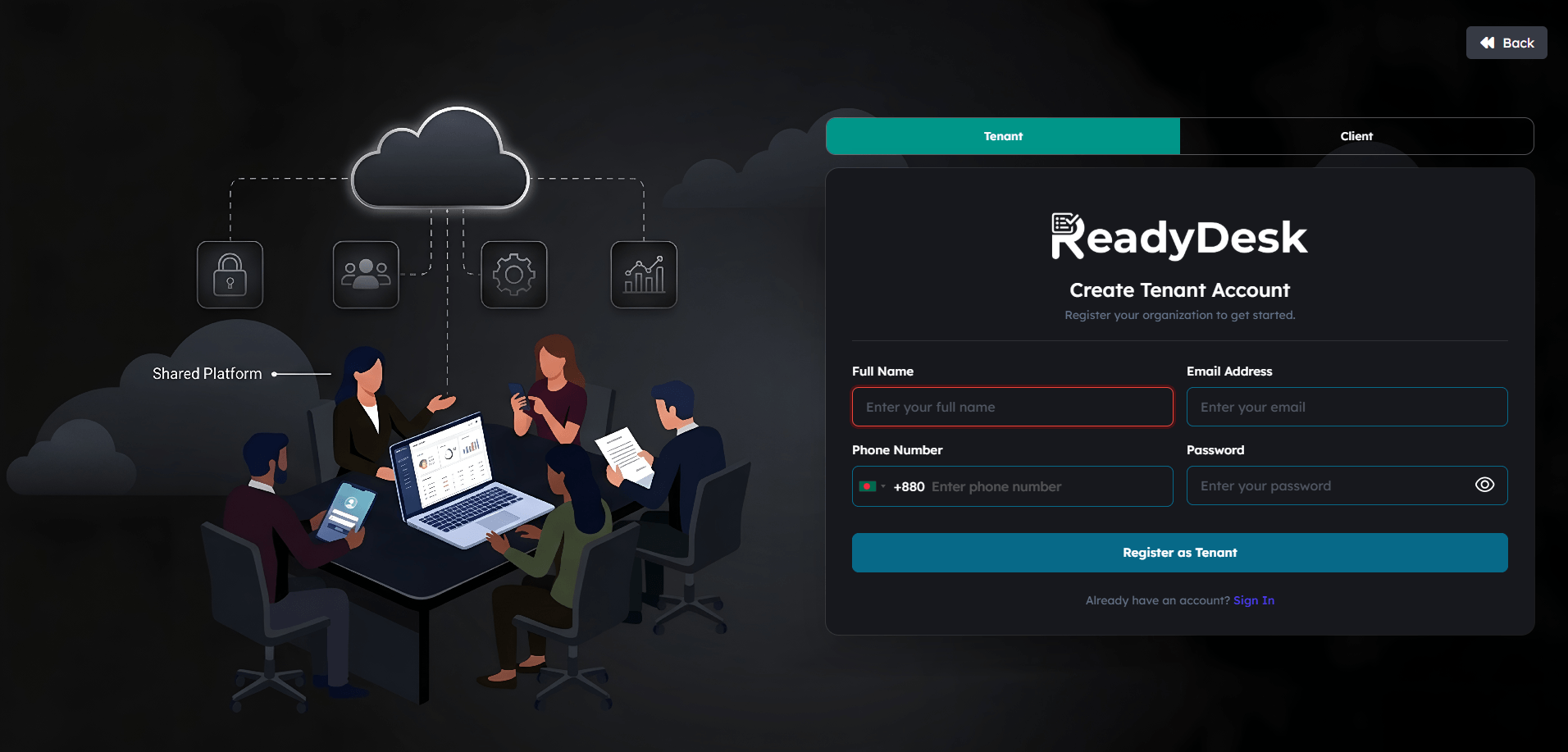
    • Step 4: Register Tenant Account
      Fill in the required information to create the tenant account. After registration, login using the tenant credentials.

      Example: Example-03

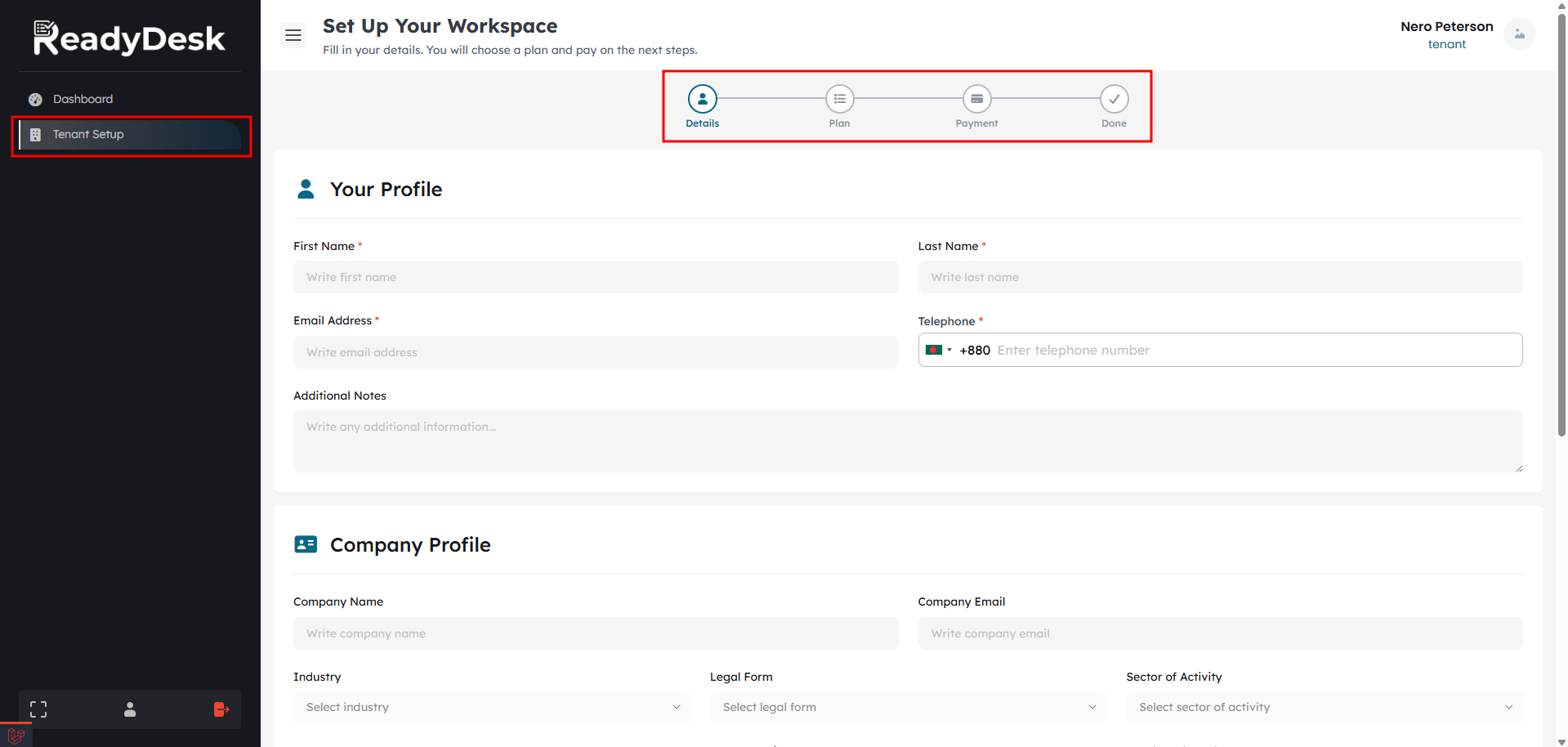
    • Step 5: Open Tenant Setup
      After login, go to the sidebar and select the Tenant Setup option.

      Example: Example-04

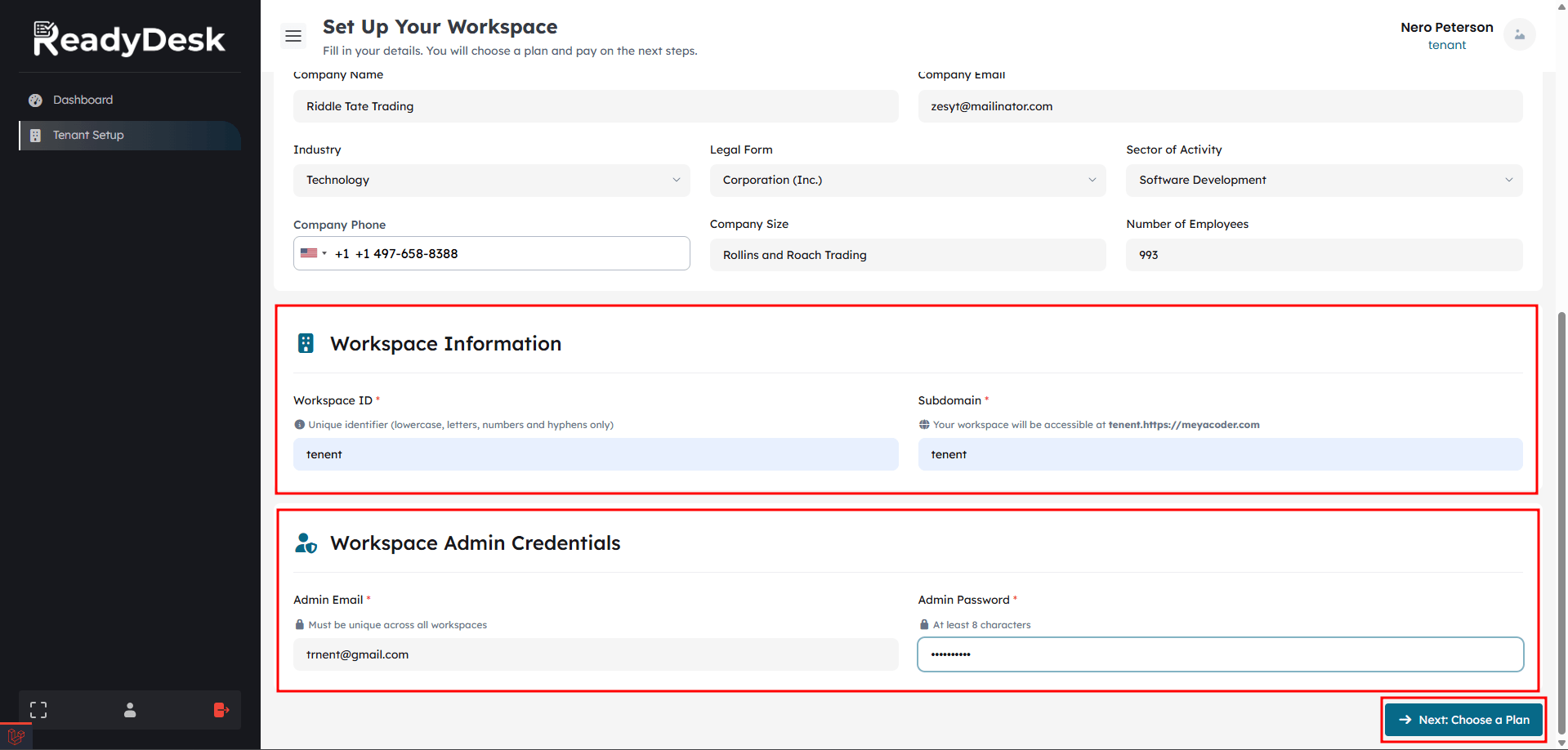
    • Step 6: Complete Tenant Profile Setup
      Fill in all required information:
      • Your Profile – Basic user information.
      • Company Profile – Company details.
      • Workspace Information – Enter the tenant sub-domain.
      • Workspace Admin Credentials – Tenant admin login information.

      Example: Example-05

    • Step 7: Select Subscription Plan
      Choose a subscription plan and complete the purchase.

      Example: Example-06

    • Step 8: Open Workspace
      After successful purchase, click the Open Workspace button to open the tenant sub-domain.

      Example: Example-07

    • Step 9: Login Tenant Admin Panel
      Login using the Workspace Admin Credentials.

      After login, the tenant admin panel will appear with all available options.

    • Step 10: Role Permission
      The options in the tenant admin panel depend on the role permissions configured from the Main Admin Panel.
    • Important Notes

      • Tenant Clients

        If a client registers from the Tenant Website, the tenant admin must grant login permission from the Tenant Admin Panel. Otherwise, the client will not be able to login to their dashboard.

      • Employee Access

        If an employee is created from the Tenant Admin Panel, the system will send an Access or Invite to the user. After that, the tenant admin must grant the proper Role Permission from the View option. Otherwise, the employee will not be able to login to the admin panel.


    System Update 3.3

    The latest system update includes enhanced security features, improved performance, bug fixes, and compatibility updates for newer hardware and software.


    Follow This Instructions

    1. Zip your project folder.
    2. Login to your cPanel.
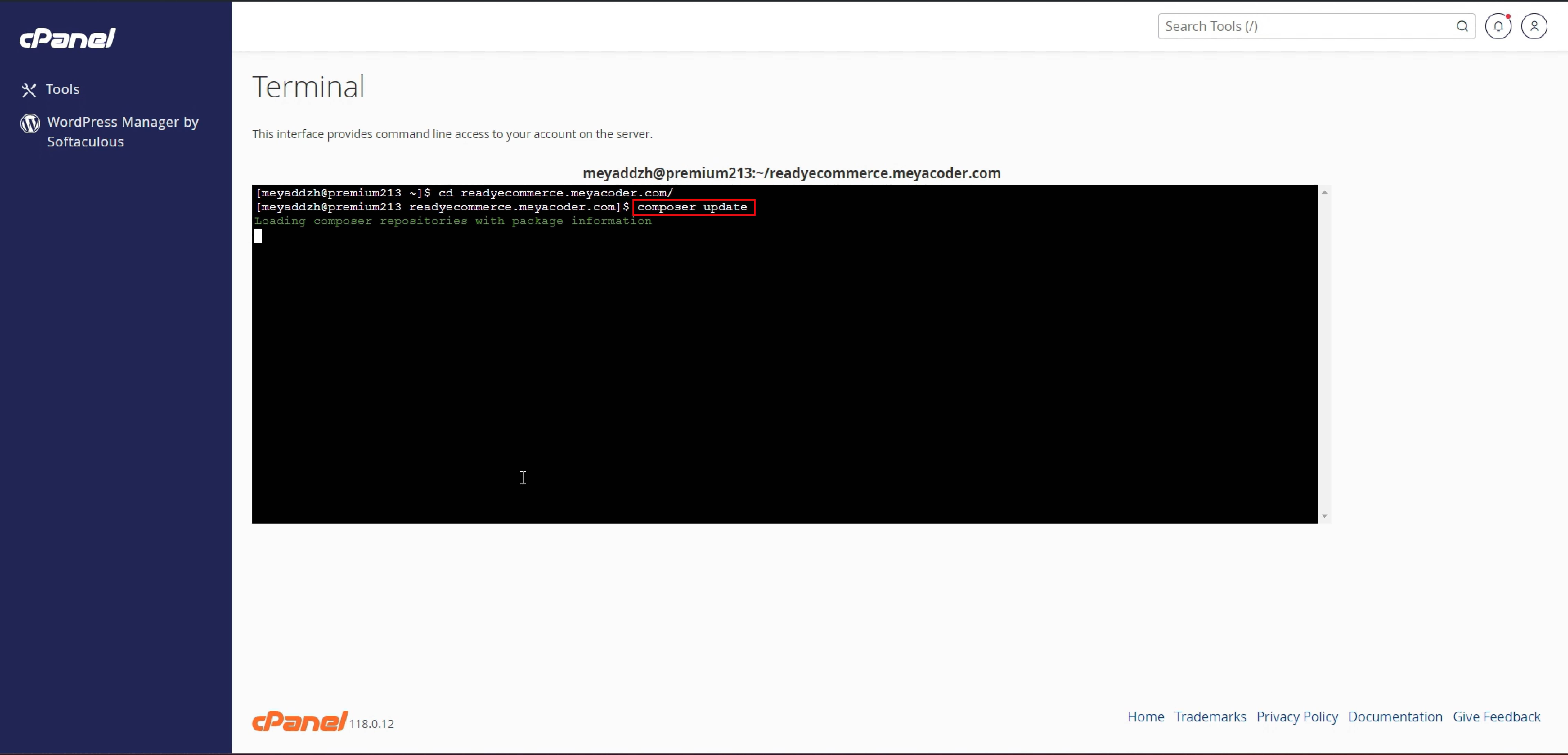
    3. Go to the cPanel Terminal.
    4. Choose your root directory, and type the command composer update
    5. Example

    6. Then open any browser and search by typing domain name / update, then update process button will be seen on the screen and press that button to go to the next step..
    7. Example

      Example-01
    8. To verify purchases, Enter your Email, Domain, Codecanyon Username, and Purchase code, and press the verify purchase button.
    9. Example

      Example-01
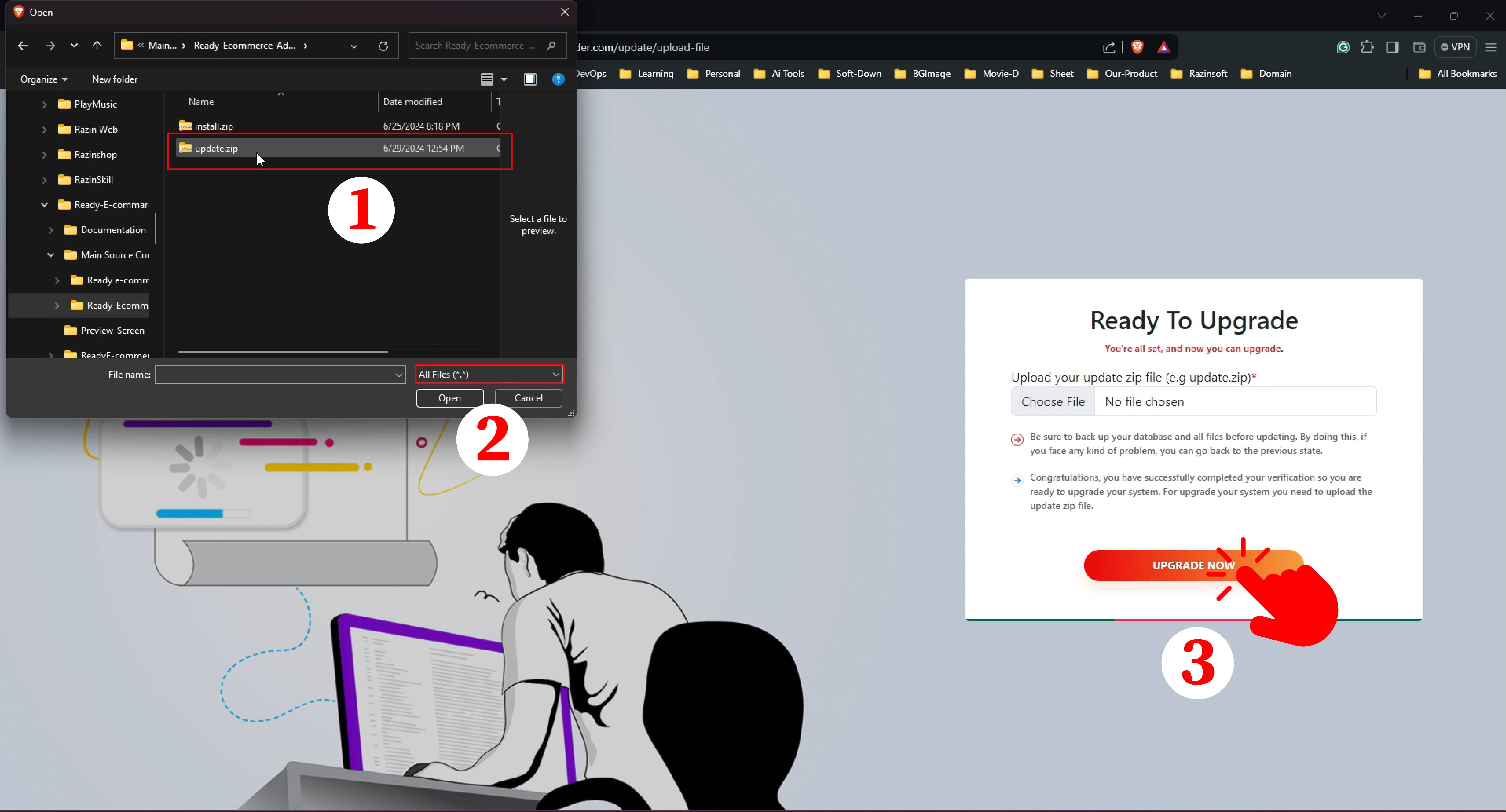
    10. Now a Ready to Update screen will appear, select your update zip file and then press the Upgrade Now button.
    11. Example

      Example-01
    12. Now a congratulation screen will appear where you have to wait for 10 seconds then your post system home page will show
    13. Example

      Example-01 Example-01
    Designed with love by Razinsoft for developers